Decoration · · 7 min read
Updated
DTG and DTF Artwork Requirements: Prepare Your Print File
Prepare artwork for apparel printing: check file format, pixel dimensions, transparency, print size and placement before approving a DTG or DTF sample.
By MadeOnBlank guides · Supplier-published guidance
Short answer
Send the original artwork, its intended width and height, the garment style and color, and the print location. For a raster image, assess pixels at the final physical size; 300 PPI is a preparation target, not a guarantee of print quality. Check transparency and approve the result on the actual garment.
On this page
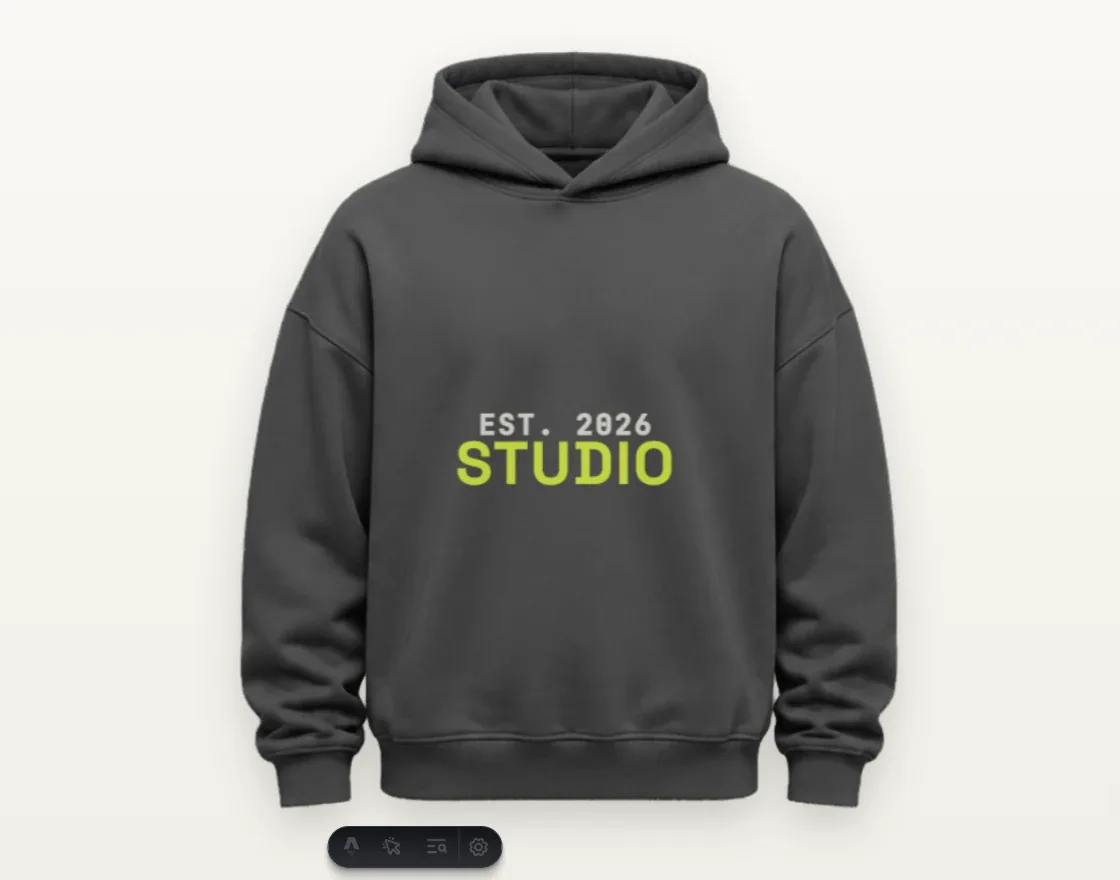
A print file and a mockup do different jobs. The print file contains the artwork used to produce the design. A mockup shows how you want it positioned. Keep both, with the garment code, color and physical print dimensions, so the team can review the same request.
This checklist applies to a personal piece, a brand sample or a repeat print run. It does not establish that every design or material is suitable for both methods. For that comparison, read DTG versus DTF printing.
Start with the garment and the print location
Choose a garment from the catalog and note its style code, color and size. Then identify the intended location: front, back or another location offered for that product.
State the artwork width and height with units. “Large front print” is not a physical specification. Keep important text away from seams, zips and edges, and check how a hood may cover an upper-back design. The usable area depends on the product and print setup.
For a size range, decide whether you want the same graphic dimensions on every garment or a reviewed adjustment by size. Do not assume that a preview on one size establishes placement for every size.
Choose a file format that preserves the design
| File | What to check before upload |
|---|---|
| PNG | Useful when the background needs to be transparent. Check pixel dimensions and edge quality at the final print size. |
| JPG or JPEG | Suitable for reviewing photographic artwork with an intentional background. It cannot preserve transparency, and repeated compression can damage small details. |
| WEBP | Supported by the designer. Confirm whether this particular file preserves transparency and enough source detail. |
| SVG | Useful for vector artwork. The designer sanitizes the file; inspect the imported result, including text, masks and any embedded raster images. |
Keep your editable original even when you upload an exported file. If the production team needs another format, agree the handover separately. Do not rename a file extension and assume its underlying format has changed.
Calculate pixels at the actual print size
For raster artwork, effective image resolution links pixel dimensions to physical size:
Effective PPI = pixel width ÷ print width in inches
Pixels needed = width in centimeters ÷ 2.54 × target PPI
PPI describes pixels per inch of the artwork. DPI describes printer dots per inch, although customers and software often use “DPI” when discussing image preparation. A file’s resolution label alone does not show how much detail it contains.
The designer describes 200–300 DPI as its preferred range for raster artwork. For comparison, the rounded examples below use a 300 PPI preparation target. They explain the calculation only; they are not this site’s maximum print areas or universal technical acceptance limits:
| Intended artwork width | Approximate pixel width at 300 PPI |
|---|---|
| 10 cm | 1,181 px |
| 15 cm | 1,772 px |
| 25 cm | 2,953 px |
| 30 cm | 3,543 px |
A 1,500-pixel image printed 10 inches wide has an effective resolution of 150 PPI. Simply changing its metadata to “300 DPI” does not make that 10-inch print contain more original detail. Review the original file, its intended size and the actual design; sharp lettering and soft photographic textures may need different treatment.
Separate transparent areas from white artwork
A transparent area lets the garment show through. White artwork is part of the design. A white rectangle around a logo may instead be an unwanted background. Tell the team which is intended.
- Inspect the design on both a light and a dark preview background.
- Check thin outlines, small lettering and stray pixels around the artwork.
- Review partial transparency, faded edges, shadows and gradients for the selected printing process.
- Keep an original version before removing a background; automatic removal can also erase intentional white details.
Do not add a white underbase to the file yourself unless the production team requests it. Process preparation depends on the garment, artwork and printing setup.
Review DTG and DTF on the actual fabric
For DTG, discuss the fabric surface, color, preparation and curing requirements. For DTF, discuss transfer compatibility, heat sensitivity, adhesion, dye migration and the effect of large solid areas. These are review questions, not claims that one method works on every fabric.
Check the design at its intended size, particularly isolated small elements and dense solid graphics. A digital image cannot establish print feel or how the decorated area behaves when stretched. Agree a sample and care review when the project requires them.
Keep one clear approval record
Before releasing the order, record:
- Garment style, color, size range and quantity.
- Original artwork filename and version.
- Print location, width, height and units.
- Intentional background, transparency and color references.
- The approved placement proof and any physical sample comments.
- Open questions, the responsible person and the written approval of revisions.
A browser preview is a placement reference. Screen color, photography and garment texture can affect what you see; they do not replace a physical color reference or agreed sample. Any later change to artwork, garment color or size should return to review.
Use the route that fits your order
For a personal item or first design, choose a product and open its designer. If the source file is not ready, keep the original and identify the issue before treating the preview as approved.
For a batch or ongoing store orders, send a short business printing request. Begin with the product and artwork; order handover, packing and delivery details can be agreed for the project. See the printing and order process for the steps from artwork to dispatch.
Technical reference
Adobe’s image size and resolution guidance explains the relationship between pixels, physical size, resolution and resampling. The calculations above are teaching examples. They do not substitute for product-specific print-area approval or a production test.
Common questions
Which artwork files can I upload?
The designer supports PNG, JPG, JPEG, WEBP and sanitized SVG. PNG can preserve a transparent background; JPG does not. A supported file still needs checks for size, edges, placement and process suitability.
Does changing a file to 300 DPI improve its detail?
Changing a resolution label without adding useful original image detail does not repair a small or blurry source. Evaluate pixel dimensions against the intended physical print size. Enlarging by resampling may invent pixels without recovering missing detail.
What size should my print be?
Choose dimensions for the specific garment, location and design. The numerical examples in this guide explain image resolution; they are not approved print-area limits. Confirm the usable area for the selected product.
Should white parts of my design be transparent?
Only if you want the garment to show through there. White artwork and an unwanted white background are different. Identify intentional white elements and request review of any semi-transparent edges or effects.
Can a digital mockup approve the final print?
A mockup helps communicate placement. It does not prove physical color, hand feel, adhesion, stretch behavior or wash performance. Use the agreed proof and, when needed, a sample on the actual garment.
Sources & scope
File-preparation checklist, pixel calculations and the formats supported by the current designer. Calculations are teaching examples, not product print-area approvals.
- Adobe: image size and resolution
Pixels, physical image size and resampling; not an apparel acceptance specification.
- Epson: DTG and DTFilm printing explained
General process background; not evidence of MadeOnBlank equipment or test performance.
Technical reviewer: pending confirmation. Use the guide to prepare your brief. Product and process approval still requires the actual garment, artwork and order review.
Publishing team, evidence standards & corrections →Put your artwork on a garment.
Start with your own piece, or plan a batch for your brand.